Using the Net Express IDE

|
Open an Existing Project Using the Net Express IDE |
|


 Introduction
This document describes how to open a previously created Net Express project. This is a four step process.
| 1. | Start Net Express. |
| 2. | Choose the options to open an existing project. |
| 3. | Define project name and location. |
| 4. | Display the Net Express Project Window |
Note: This module is part of The SIMOPATH Series of training and reference materials. For more information refer to The Home Page for The SIMOPATH Series.
We have made a significant effort to ensure the documents and software technologies are correct and accurate. We reserve the right to make changes without notice at any time. The function delivered in this version is based upon the enhancement requests from a specific group of users. The intent is to provide changes as the need arises and in a timeframe that is dependent upon the availability of resources.
Copyright © 1987-2019
SimoTime Technologies and Services
All Rights Reserved
Open an Existing Net Express Project
To open an existing Net Express Project we must first start Net Express.
Step 1, Start Net Express
Do the following tasks to start Net Express.
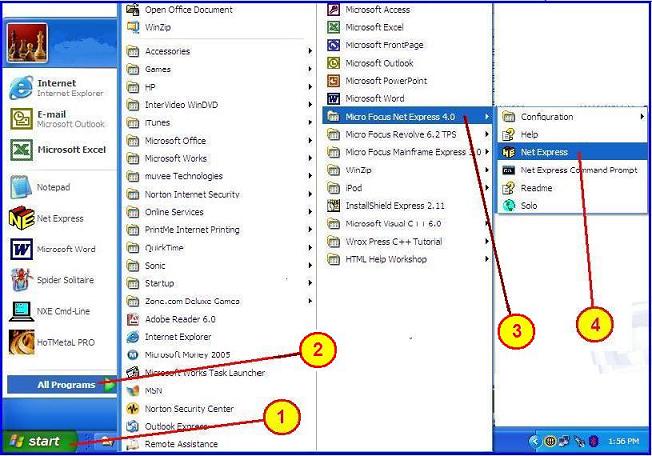
| 1. | Click on the START button. |
| 2. | Select "All Programs". |
| 3. | Select "Micro Focus Net Express 4.0". |
| 4. | Select "Net Express". |
A Net Express window should be displayed.
Step 2, Open an Existing Project
Do the following tasks to open an existing Net Express project.
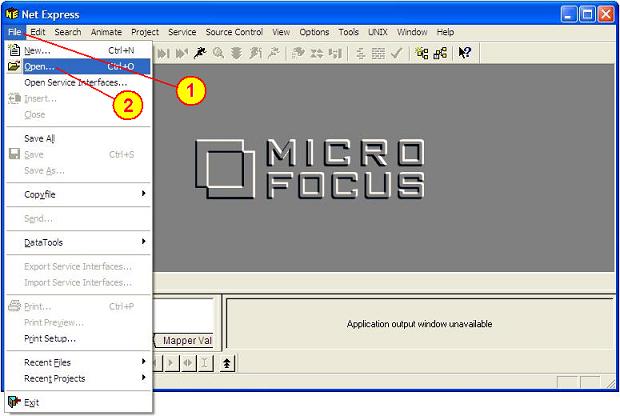
| 1. | Select the "File" item of the Net Express Tool Bar. |
| 2. | Select the "Open" item of the drop-down list. |
The following screen should be displayed.
Step 3, Specify Project Name & Location
The following screen is used to specify the Net Express project name and location. The project that will be opened is located at c:\DataMig1\DataNXE1.APP.
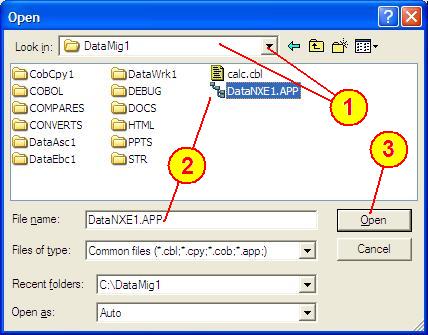
| 1. | Select the "DataMig1" directory. |
| 2. | Select or type the project name "DataNXE1.APP". |
| 3. | Click on the "Open" button. |
The following screen should be displayed.
Step 4, Display the Project Window
The following window shows the Net Express project that has been opened.
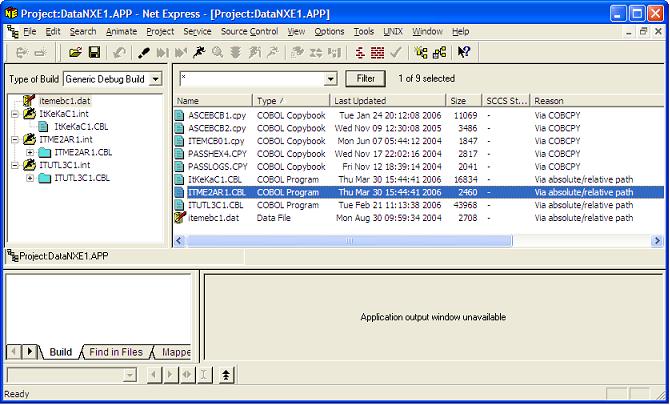
This will be used as the starting point for adding additional source members and data files. The project has been opened. The preceding window may look a bit different depending on what source members were previously added to the project.
Summary
The purpose of this document is to show how to start Net Express and open an existing project. Also, this document may be used to assist as a tutorial for new programmers or as a quick reference for experienced programmers. In the world of programming there are many ways to solve a problem. This is an example of how a COBOL program can access (i.e. Get or Set) environment variables using Micro Focus Net Express.
Software Agreement and Disclaimer
Permission to use, copy, modify and distribute this software, documentation or training material for any purpose requires a fee to be paid to SimoTime Technologies. Once the fee is received by SimoTime the latest version of the software, documentation or training material will be delivered and a license will be granted for use within an enterprise, provided the SimoTime copyright notice appear on all copies of the software. The SimoTime name or Logo may not be used in any advertising or publicity pertaining to the use of the software without the written permission of SimoTime Technologies.
SimoTime Technologies makes no warranty or representations about the suitability of the software, documentation or learning material for any purpose. It is provided "AS IS" without any expressed or implied warranty, including the implied warranties of merchantability, fitness for a particular purpose and non-infringement. SimoTime Technologies shall not be liable for any direct, indirect, special or consequential damages resulting from the loss of use, data or projects, whether in an action of contract or tort, arising out of or in connection with the use or performance of this software, documentation or training material.
Downloads and Links
This section includes links to documents with additional information that are beyond the scope and purpose of this document. The first group of documents may be available from a local system or via an internet connection, the second group of documents will require an internet connection.
Note: A SimoTime License is required for the items to be made available on a local system or server.
Current Server or Internet Access
The following links may be to the current server or to the Internet.
Note: The latest versions of the SimoTime Documents and Program Suites are available on the Internet and may be accessed using the  icon. If a user has a SimoTime Enterprise License the Documents and Program Suites may be available on a local server and accessed using the
  icon.
icon.
Explore The SIMOPATH Series starting at the home page to view information about training sessions and learning materials available from SimoTime Enterprises.
Explore An Enterprise System Model that describes and demonstrates how Applications that were running on a Mainframe System and non-relational data that was located on the Mainframe System were copied and deployed in a Microsoft Windows environment with Micro Focus Enterprise Server.
Explore the COBOL Connection for more examples of COBOL programming techniques and sample code.
Explore an Extended List of Software Technologies that are available for review and evaluation. The software technologies (or Z-Packs) provide individual programming examples, documentation and test data files in a single package. The Z-Packs are usually in zip format to reduce the amount of time to download.
Explore The ASCII and EBCDIC Translation Tables. These tables are provided for individuals that need to better understand the bit structures and differences of the encoding formats.
Explore The File Status Return Codes to interpret the results of accessing VSAM data sets and/or QSAM files.
Internet Access Required
The following links will require an internet connection.
This suite of programs and documentation is available for download. Link to an Evaluation zPAK Option that includes the program members, documentation and control files.
A good place to start is The SimoTime Home Page for access to white papers, program examples and product information. This link requires an Internet Connection
Explore The Micro Focus Web Site for more information about products and services available from Micro Focus. This link requires an Internet Connection.
Glossary of Terms
Explore the Glossary of Terms for a list of terms and definitions used in this suite of documents and white papers.
Comments or Feedback
This document was created and is maintained by SimoTime Technologies. If you have any questions, suggestions, comments or feedback please use the following contact information.
| 1. | Send an e-mail to our helpdesk. |
| 1.1. | helpdesk@simotime.com. |
| 2. | Our telephone numbers are as follows. |
| 2.1. | 1 415 763-9430 office-helpdesk |
| 2.2. | 1 415 827-7045 mobile |
We appreciate hearing from you.
Company Overview
SimoTime Technologies was founded in 1987 and is a privately owned company. We specialize in the creation and deployment of business applications using new or existing technologies and services. We have a team of individuals that understand the broad range of technologies being used in today's environments. Our customers include small businesses using Internet technologies to corporations using very large mainframe systems.
Quite often, to reach larger markets or provide a higher level of service to existing customers it requires the newer Internet technologies to work in a complementary manner with existing corporate mainframe systems. We specialize in preparing applications and the associated data that are currently residing on a single platform to be distributed across a variety of platforms.
Preparing the application programs will require the transfer of source members that will be compiled and deployed on the target platform. The data will need to be transferred between the systems and may need to be converted and validated at various stages within the process. SimoTime has the technology, services and experience to assist in the application and data management tasks involved with doing business in a multi-system environment.
Whether you want to use the Internet to expand into new market segments or as a delivery vehicle for existing business functions simply give us a call or check the web site at http://www.simotime.com
| Return-to-Top |
| Open Existing Project using Net Express |
| Copyright © 1987-2019 SimoTime Technologies and Services All Rights Reserved |
| When technology complements business |
| http://www.simotime.com |